Scrolling Background
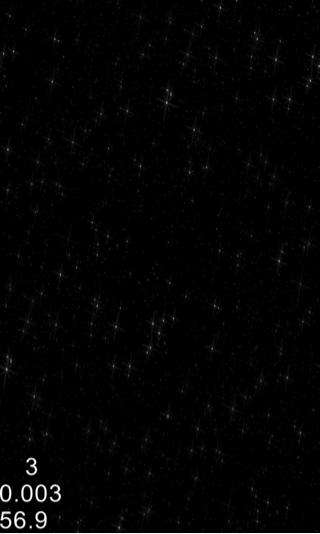
Our spaceship will be navigating through space so we need some stars and we need them to move across the screen to create an illusion of movement. The simplest and the easiest way to implement this in Cocos2d-x is using fake scrolling. Fake scrolling is basically taking two images and repeatedly scrolling them across the screen. To implement this, we will need to create two instances of our background image and scroll them vertically from top of the screen to the bottom. Once an image scrolls off the screen, we put it back at the top and scroll it again. Let’s implement this.
1. Under the HelloCpp project>Classes, open HelloWorldScene.h
(a) Define the following constant:
#define MAX_SCROLL_SPEED 15 //Maximum background scroll speed
(b) Add the private declaration block with the following declarations:
private:

	//Keep track of game time in seconds
	float _gameTime;

	//Keep track of scrolling
	float _scrollAxis;
	float _scrollSpeed;
	bool _accelerate;

	//Window width/height
	int _winWidth;
	int _winHeight;

	//Origin
	cocos2d::CCPoint _origin;

	//Batch node for loading the spritesheet
	cocos2d::CCSpriteBatchNode* _spriteBatchNode;

	//Background sprites
	cocos2d::CCSprite* _background1;
	cocos2d::CCSprite* _background2;

	//Game Update Method
	void updateGame(float dt);
In the code above we have added all the variables required to keep track of the scrolling background. We have also added our updateGame method which is scheduled to run at regular intervals to update the game.
2. Open Classes>HelloWorldScene.cpp
(a) Under HelloWorld::init() comment the below lines and everything in between to disable the standard HelloWorld display code since we no longer need it:
//    CCMenuItemImage *pCloseItem = CCMenuItemImage::create()
//    ...comment out all in between lines
//    this->addChild(pSprite, 0);
(b) Add the following after the commented lines and before the return statement:
do {
    	//Initialize game time
    	_gameTime = 0;
    	//Initialize scrolling variables
    	_scrollSpeed = 0;
    	_accelerate = true;
    	_scrollAxis = 0;

		//Get window width/height
		CCSize winSize = CCDirector::sharedDirector()->getWinSize();
		_winHeight = winSize.height;
		_winWidth = winSize.width;

		//Get origin
		_origin = CCDirector::sharedDirector()->getVisibleOrigin();

		//Load spritesheet
		_spriteBatchNode = CCSpriteBatchNode::create("spriteSheet.png");
		this->addChild(_spriteBatchNode);
		CCSpriteFrameCache::sharedSpriteFrameCache()->addSpriteFramesWithFile("spriteSheet.plist");

		//Load background sprites
		_background1 = CCSprite::createWithSpriteFrameName("background.png");
		_background1->setAnchorPoint(ccp(0.0f, 0.0f));
		_background1->setPosition(ccp(0.0f, 0.0f));

		CCRect bgRect = _background1->getTextureRect();
		_background1->setScaleX(winSize.width / bgRect.size.width);
		_background1->setScaleY(winSize.height / bgRect.size.height);

		_background2 = CCSprite::createWithSpriteFrameName("background.png");
		_background2->setAnchorPoint(ccp(0.0f, 0.0f));
		_background2->setPosition(ccp(0.0f, winSize.height));

		_background2->setScaleX(winSize.width / bgRect.size.width);
		_background2->setScaleY(winSize.height / bgRect.size.height);
		this->addChild(_background2);
		this->addChild(_background1);
//schedule updateGame to update the game at regular intervals
this->schedule(schedule_selector(HelloWorld::updateGame));
} while (0);
(c) Add the HelloWorld::updateGame(float dt) method to update our game:
void HelloWorld::updateGame(float dt) {

	_gameTime += dt; //Add dt to game time

	//Background Scrolling
	if (_accelerate) { //accelerate
		//Move the scroll axis at scroll speed
		_scrollAxis -= _scrollSpeed;

		//if we have scrolled through both backgrounds reset scroll axis
		if (_scrollAxis <= -_winHeight) {
			_scrollAxis = 0;
		}

		//update positions for the background sprites as per the scrollAxis
		_background1->setPosition(ccp(0.0f,_scrollAxis));
		_background2->setPosition(ccp(0.0f,_scrollAxis+_winHeight));

		//Keep increasing the scroll speed until we approach the max
		if (_scrollSpeed < MAX_SCROLL_SPEED) {
			_scrollSpeed += 0.1;
		}
	} else { //decelerate
		//Move the scroll axis at scroll speed
		_scrollAxis -= _scrollSpeed;

		//if we have scrolled through both backgrounds reset scroll axis
		if (_scrollAxis <= -_winHeight) {
			_scrollAxis = 0;
		}
		//Keep decreasing the scroll speed until we approach reach 0
		if (_scrollSpeed > 0) {
			_scrollSpeed -= 0.1;
			_background1->setPosition(ccp(0.0f,_scrollAxis));
			_background2->setPosition(ccp(0.0f,_scrollAxis+_winHeight));
		}
	}
}
In the code above, we have initialized our scrolling variables, spritesheet and background sprites. We have implemented the Cocos2d-x updateGame method to update our game scene. This method is executed automatically by the Cocos2d-x engine before rendering the next frame. In our updateGame method, we have added code that moves background sprites across the screen and resets their position once they scroll completely off the screen.
Build/deploy the project and you should see the space background scrolling across the screen.
You can download the completed source code for this step from here.
 pratiksapra.com
Thank you very much.
Written very well.